HubSpot does some email validation on its own. Forms reject addresses that are obviously malformed, contacts that hard-bounce stop receiving marketing email, and you can block certain domains from forms. What it doesn't do is tell you, before you send, which of your 40,000 contacts have mailboxes that no longer exist. That gap is where most HubSpot bounce problems come from.
This guide covers what to use natively, then how to run a bulk check outside HubSpot and bring the results back in a way that's useful for lists and workflows.
What HubSpot validates natively
Form fields
HubSpot forms check that an email field looks like an address before submission. In the form editor you can also:
- Block free email providers, useful for B2B demo forms where you want company addresses.
- Block specific domains, such as competitors or known junk domains.
These rules stop some bad sign-ups. They don't check whether the domain can receive mail or whether the mailbox exists, and a mistyped company domain will still go through.
Bounce handling
When a marketing email hard-bounces, HubSpot marks the contact so they won't receive future marketing emails. Repeated soft bounces can lead to the same outcome. You'll see this on the contact record and can filter for it in lists.
This protects you from mailing the same dead address twice. It doesn't protect the first send, and when you import a fresh list, every dead address in it gets one chance to bounce.
Import checks
During import, HubSpot will flag rows it can't parse as addresses. It won't verify deliverability.
Where HubSpot email validation stops
| Problem | Caught natively? |
|---|---|
| Malformed address on a form | Yes |
| Free-mail address on a B2B form | Yes, if you turn it on |
Mistyped domain (gmial.com, acme.con) | Not reliably |
| Domain with no mail server | No |
| Mailbox that doesn't exist | Only after it bounces |
| Disposable inbox | Partly, via blocked domains you maintain yourself |
| Catch-all domain | No |
| Old contacts who left their company | Only after they bounce |
The pattern is that HubSpot learns from bounces. Verification lets you learn before.
Bulk clean-up: export, verify, re-import
This takes under an hour for most portals.
1. Build the list to verify
Create an active or static list of contacts you plan to email. Good candidates:
- Contacts imported in the last few months that haven't been mailed
- Contacts not emailed in six months or more
- Anything from events, partners or purchased-data imports
You don't need to verify contacts who opened or clicked last week. Their mailboxes clearly work.
2. Export with the Record ID
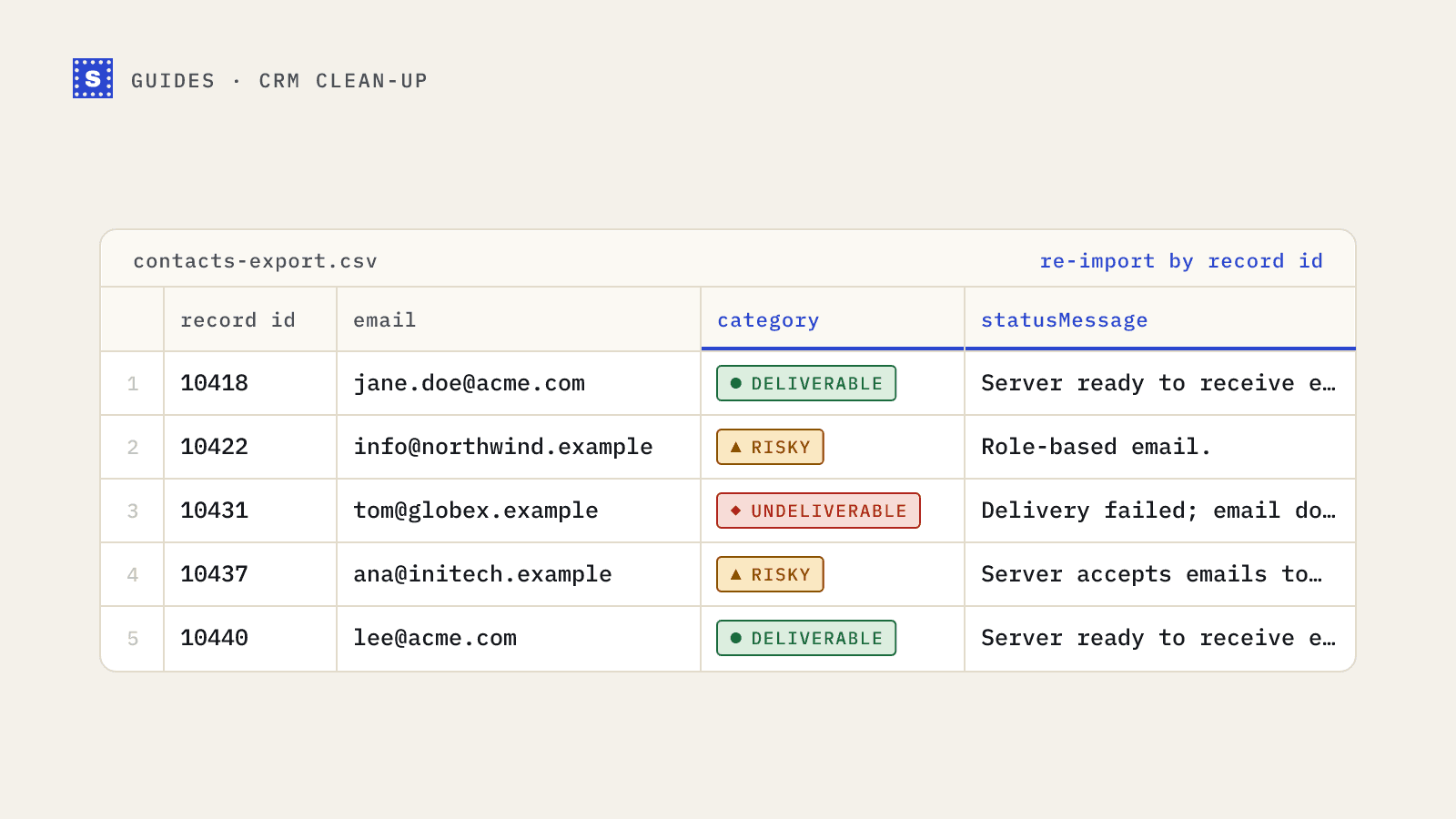
Export the list as CSV and include the Record ID and Email columns, plus anything you want to see in the results. The Record ID lets you update the exact contacts on re-import.
3. Verify the file
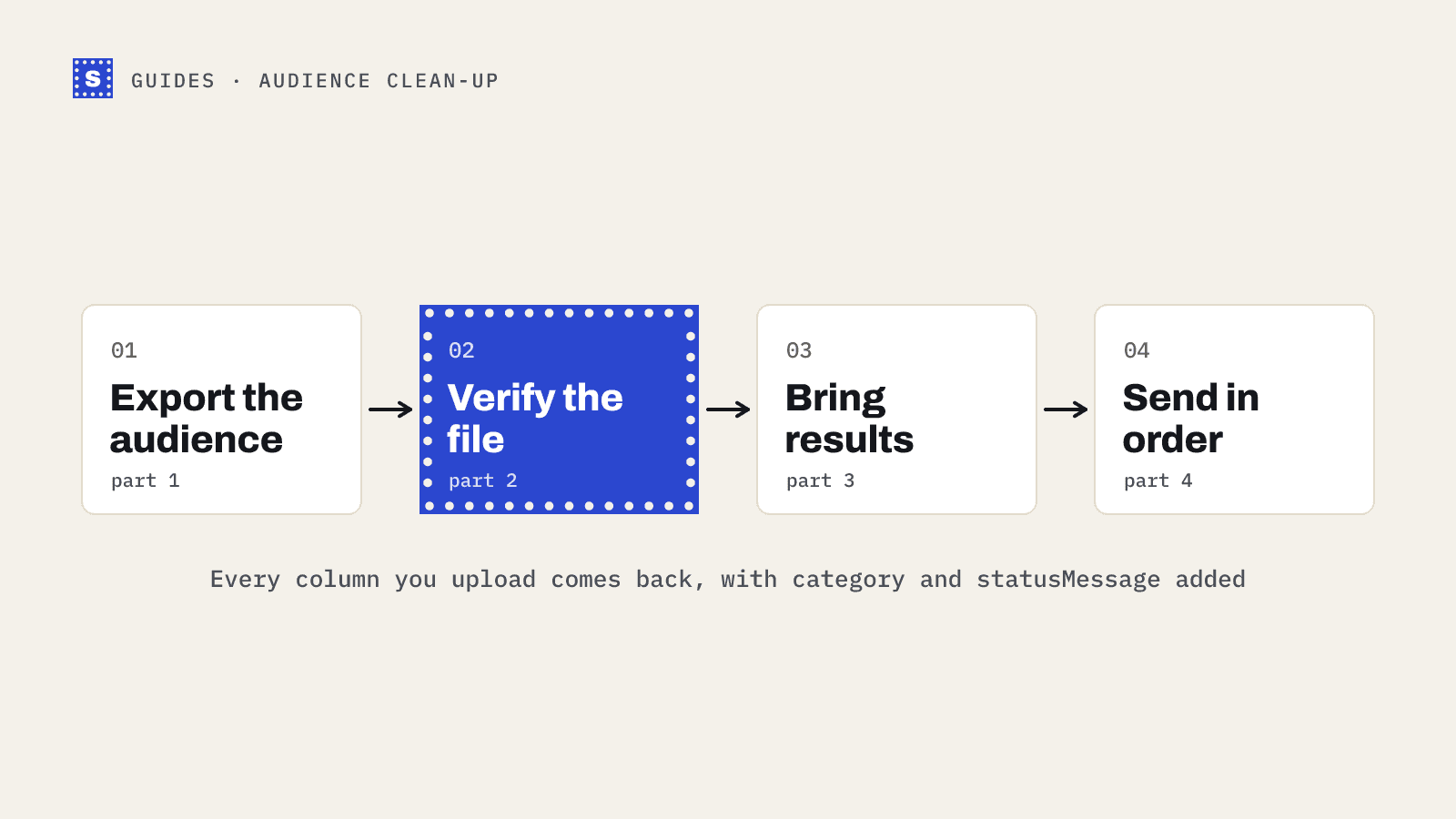
Upload the CSV to a bulk email verifier. SimpleCold keeps every column you uploaded and adds result columns, including Result (Deliverable, Risky or Undeliverable), Reason code and Reason, the plain reason. Your column headers come back exactly as they were, so Record ID stays Record ID. If two contacts share an address, it's checked and charged once and appears in the file once.
If you'd rather skip the export, SimpleCold can also connect to HubSpot with read-only access and pull a list straight into a bulk job. It doesn't write anything back to HubSpot, so the re-import below is still how results reach your contact records.
4. Create properties to hold the results
In HubSpot settings, create two contact properties:
- Email verification result: dropdown with Deliverable, Risky, Undeliverable
- Email verification reason: single-line text
Add a date property, such as Email verified on, if you want to re-verify on a schedule.
5. Re-import to update contacts
Import the results file as an update to existing contacts, matching on Record ID. Map Result to your result property and Reason to the reason property. Fill the date column before importing.
Use the results in lists and workflows
Once the properties exist, the results become filters.
| Segment | Filter | What to do |
|---|---|---|
| Safe to email | Result is Deliverable | Normal sends |
| Remove | Result is Undeliverable | Set marketing contact status to non-marketing, or suppress |
| Careful | Result is Risky and reason mentions catch-all | Smaller sends, monitor bounces |
| Disposable | Reason mentions disposable | Exclude from marketing |
| Recheck | Result is Risky and reason says the server would not confirm the address | Re-verify before the next campaign |
A simple workflow can enforce this: when the result property becomes Undeliverable, set the contact to non-marketing and notify the owner if it's an open deal. That way a sales rep learns their champion's address died before they send a proposal into nothing.
Verifying new contacts as they arrive
Bulk clean-ups handle the backlog. For new contacts, you have two options:
- Scheduled batches. Each week, export contacts created since the last run, verify, and re-import. No code, and good enough for most teams.
- API on the way in. If contacts arrive through your own forms or backend, call the email verification API before creating the contact in HubSpot and write the result properties at creation time.
Avoid verifying in a loop on every property change. Verify once at entry, then again on a schedule or before a big send.
A sensible cadence
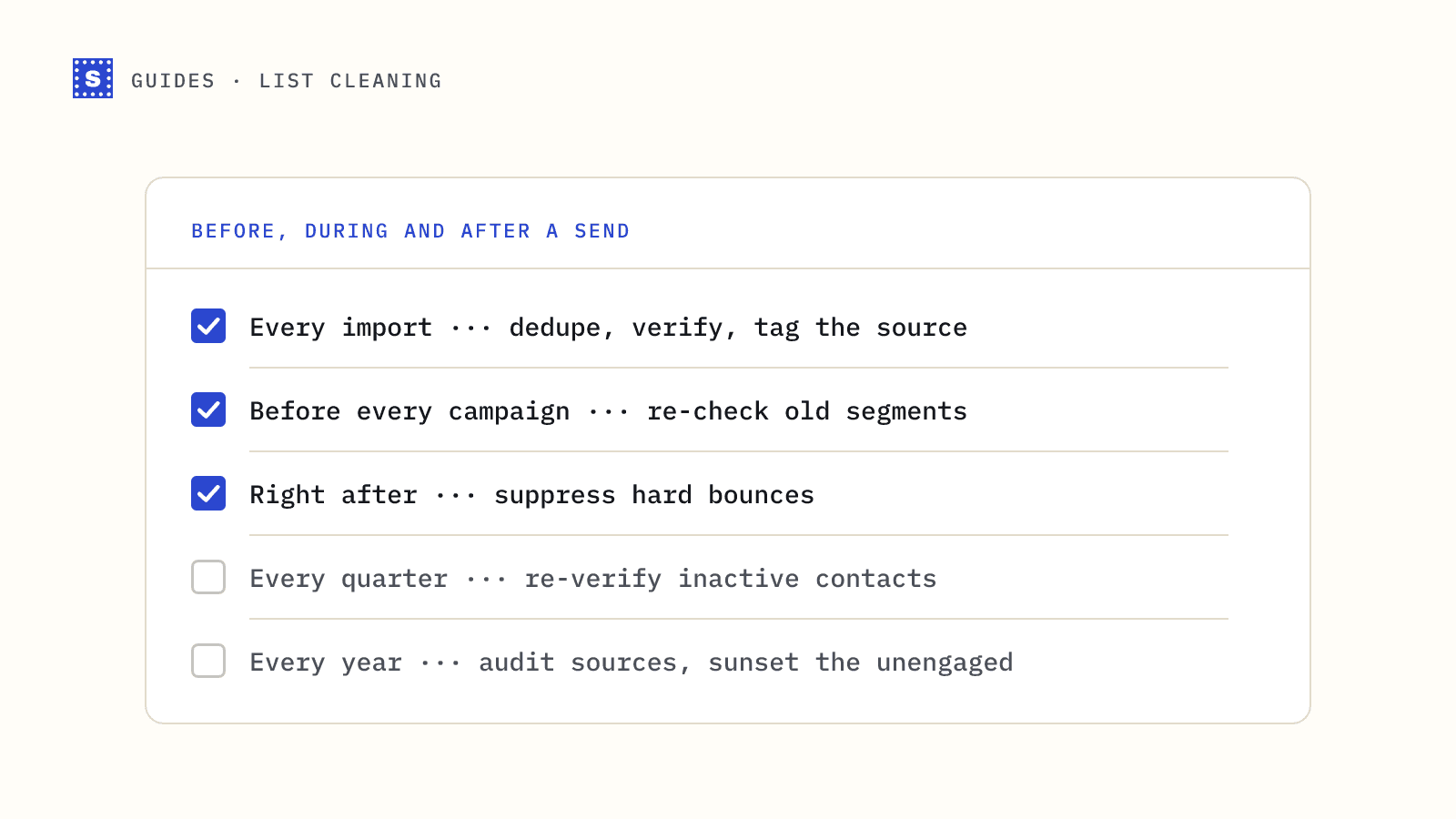
- Verify every import before it's mailed.
- Re-verify contacts that haven't been emailed in several months.
- Re-verify Risky results where the server wouldn't confirm the address (status
no_response) after a few weeks. - Review bounce reports after each large send to see whether any segment needs another pass.
Next steps
If you're starting from a large, older portal, begin with contacts you plan to email in the next month, not the whole database. The HubSpot integration page walks through the export and import steps. If your list goes out through Mailchimp instead, the same approach is described in cleaning a Mailchimp audience before a big send.