A big send to a Mailchimp audience you have not mailed in a while is where bounce problems show up. Mailchimp watches bounce rates and abuse complaints closely, and a campaign that bounces badly can trigger a compliance review on your account. Cleaning the audience first takes less time than dealing with that.
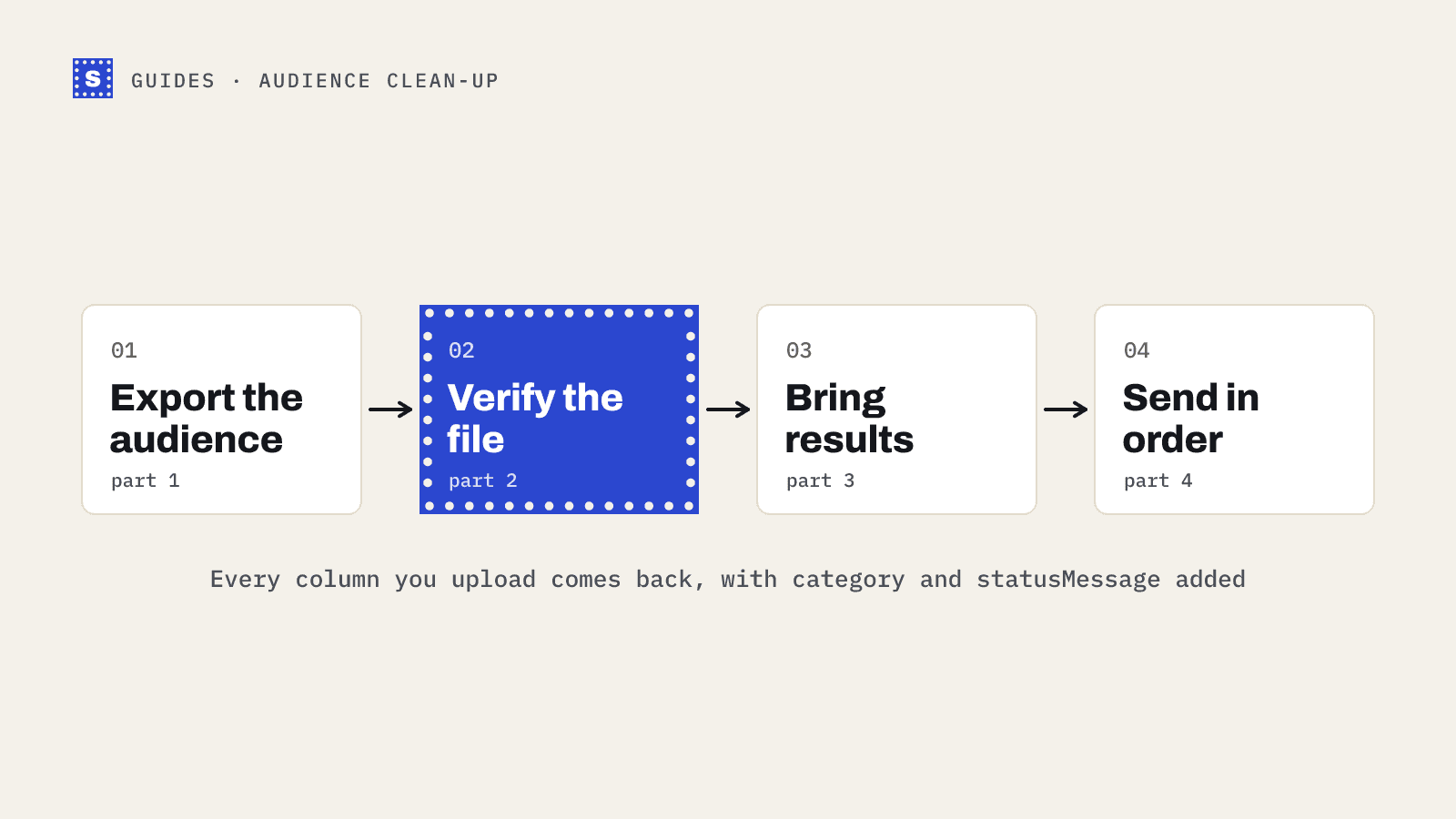
This guide shows how to clean a Mailchimp audience in four parts: export, verify, act on the results, and tidy up. It works for any plan.
What Mailchimp already does for you
Mailchimp cleans some addresses on its own. When an email hard-bounces, Mailchimp marks the contact as cleaned and stops sending to it. Repeated soft bounces can also lead to a contact being cleaned. Cleaned contacts do not count toward your audience billing.
That is helpful but reactive. Mailchimp only learns an address is bad after you send to it, and those bounces count against you. Verifying first moves the discovery to before the send.
It is also worth knowing the difference between the contact statuses you will see:
| Status | Meaning |
|---|---|
| Subscribed | Will receive campaigns |
| Unsubscribed | Opted out; you cannot re-subscribe them yourself |
| Non-subscribed | Exists in the audience (e.g. from a purchase) but never opted in to marketing |
| Cleaned | Mailchimp stopped sending because of bounces |
| Archived | Removed from the active audience and billing, but history is kept |
Archiving is your main tool for removing bad contacts without losing their history.
Part 1: Export the audience
- Go to Audience, then All contacts.
- Choose Export Audience and wait for the file. Mailchimp exports a zip with one CSV per status.
- You only need the subscribed file for this job. Keep the others for reference.
Open the subscribed CSV and check that the email column is named Email Address or similar. Leave every other column in place.
Part 2: Verify the file
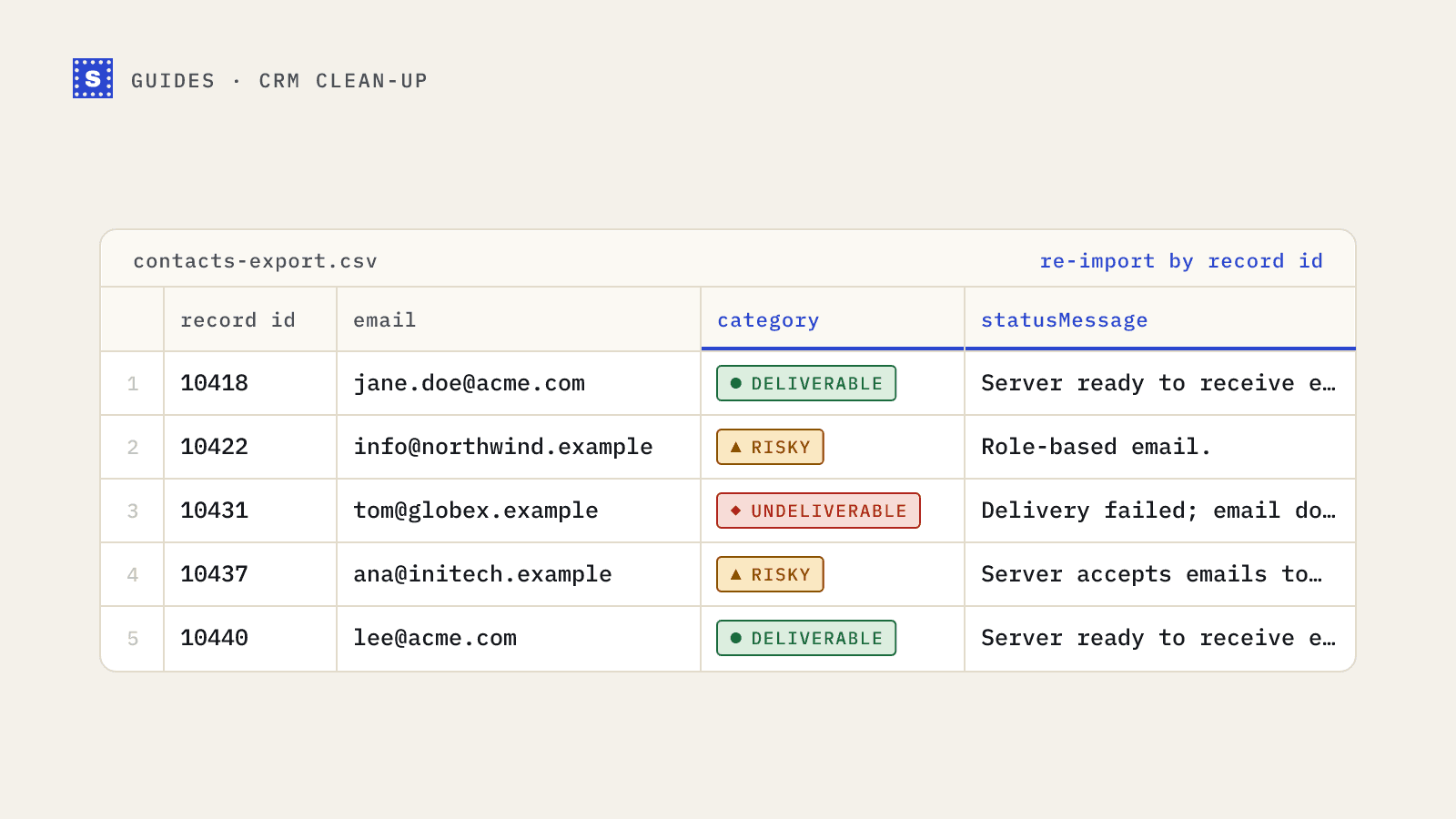
Upload the CSV to a bulk email verifier. SimpleCold detects the email column automatically, keeps every original column, and appends the result columns, including Result, Reason code and Reason. Your headers come back exactly as they were, so the file you download can go straight back into Mailchimp.
While it runs, decide your rules. A sensible default:
- Undeliverable: archive.
- Risky, disposable: archive.
- Risky, catch-all or no response: keep, but tag so you can send to them separately.
- Risky, role-based: keep if this is a B2B list where
info@addresses signed up themselves; tag them either way. - Deliverable: keep.
Part 3: Bring the results back into Mailchimp
You have two options. Pick based on whether you want Mailchimp to keep the bad contacts' history.
Option A: Tag, then archive
- Filter the verified file to rows you want to remove. Save just the email column as a new CSV.
- In Mailchimp, go to Audience, then Import contacts, and upload that file.
- Choose Update existing contacts, map only the email field, and add a tag such as
verify-remove-2026-02. - Create a segment for that tag, select all, and choose Archive.
This keeps everything traceable. If someone asks why a contact disappeared, the tag tells you.
Option B: Tag everything by result
If you want to send to risky contacts separately, import the whole verified file with Update existing contacts and map the Result column to a new text merge field (for example VERIFY). Then build segments:
VERIFY is Deliverablefor the main send.VERIFY is Riskyfor a smaller, slower follow-up send.VERIFY is Undeliverableto archive.
Merge fields are easier to filter than tags when you have several values. Keep the field name short; Mailchimp limits merge tag length.
Part 4: Send in the right order
- Send the main campaign to the deliverable segment first.
- Check the campaign report after a few hours. If hard bounces are close to zero, proceed.
- Send to the risky segment in a smaller batch, or a day later. Catch-all domains can accept mail at the server and bounce it afterwards, so watch this one closely.
- Hold the no-response addresses (Risky, where the server wouldn't confirm) until you have re-checked them.
Splitting the send this way means a problem in the risky segment does not drag down the results of your best contacts.
Do not forget the source
A clean audience gets dirty again if the same bad addresses keep arriving. Check where contacts come from:
- Signup forms without confirmation let typos and fake addresses straight in. Mailchimp's double opt-in setting fixes most of that, and our glossary entry on double opt-in explains the trade-offs.
- Imports from events, webinars and CRMs are where most dead addresses come from. Verify those files before importing them, not after.
- Integrations that sync contacts from other tools can re-add archived addresses. Check your sync settings.
How often to repeat this
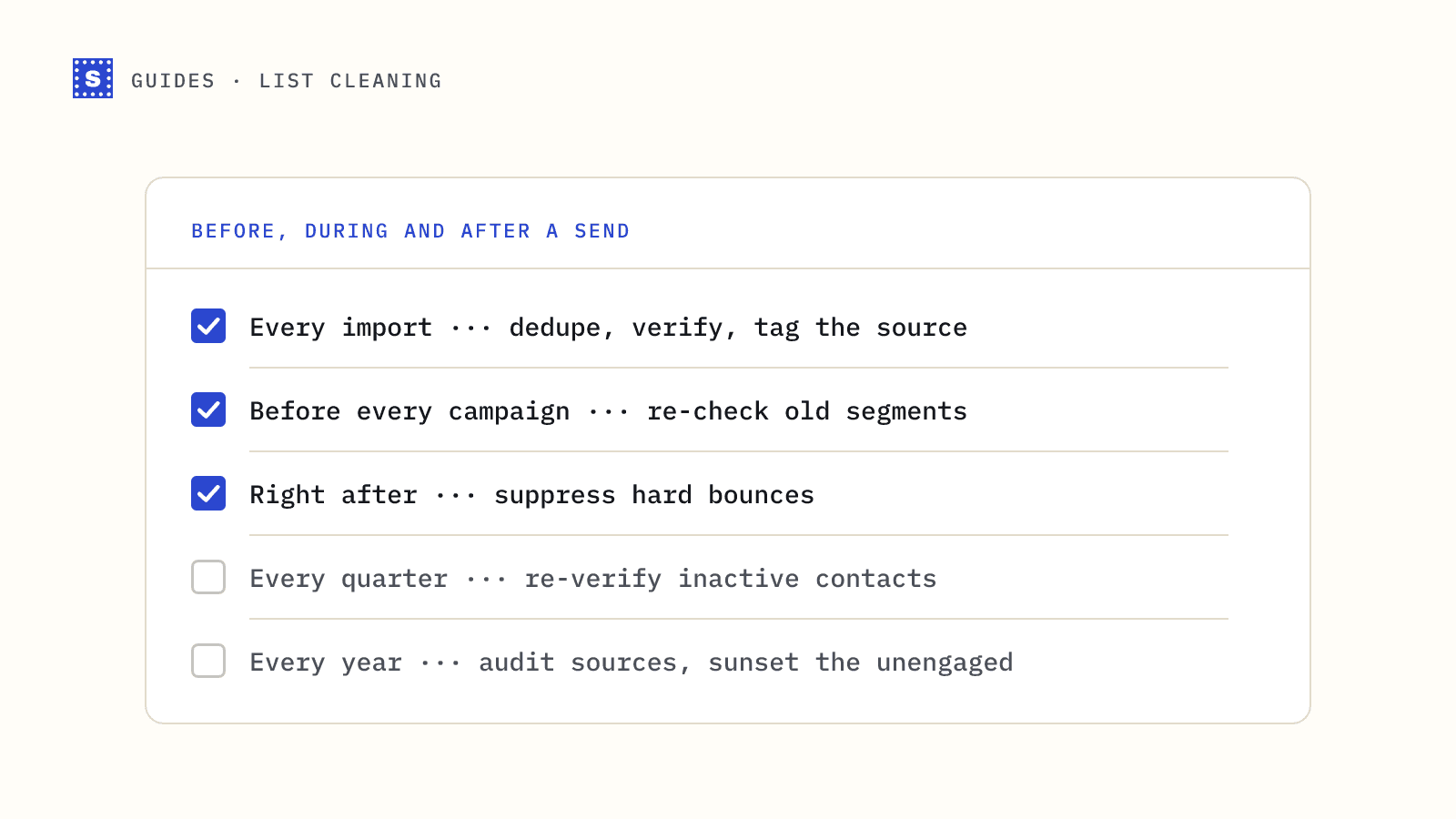
For an active newsletter, a full clean once or twice a year plus verification of every new import is usually enough. If your audience includes a lot of business addresses, people change jobs often, so lean toward more frequent checks. The post on how often to clean your email list goes into this in more detail.
For the integration side, including how the CSV round trip looks today, see the Mailchimp integration page. If you want to try it on a small export first, the free list cleaning tool checks up to 100 addresses once a day without an account.