Plenty of email lists live in spreadsheets, at least for a while. Before you upload one anywhere, you can catch a surprising amount of junk with a few formulas. This guide shows how to validate emails in Excel and Google Sheets: format checks, duplicates, domain extraction and a few useful flags.
It also explains the limit. A spreadsheet can tell you an address looks right. It cannot tell you whether the mailbox exists. For that you need a verifier, and we will get to that at the end.
All examples assume your emails are in column A, starting at A2.
Step 1: Clean up whitespace and case
Pasted data often carries spaces, line breaks and mixed case. Put a cleaned version in column B:
=LOWER(TRIM(A2))
In Google Sheets and Excel this works the same way. TRIM removes leading and trailing spaces; LOWER makes the address lowercase so duplicates match. If you see non-breaking spaces from web copy, wrap it in SUBSTITUTE:
=LOWER(TRIM(SUBSTITUTE(A2, CHAR(160), " ")))
Use column B for everything that follows.
Step 2: Check the format
Google Sheets: REGEXMATCH
Google Sheets supports regular expressions directly:
=REGEXMATCH(B2, "^[a-z0-9._%+'-]+@[a-z0-9-]+(\.[a-z0-9-]+)*\.[a-z]{2,}$")
This returns TRUE for addresses with a sensible local part, an @, and a domain with at least one dot and a top-level domain of two or more letters. It is deliberately loose. It accepts plus tags (jane+news@) and apostrophes (o'brien@), which are valid and common. It will reject some technically valid but rare forms, such as quoted local parts, which almost never appear in real lists.
Excel: no built-in regex in most versions
Most Excel versions do not have a regex function, so use a set of simpler tests instead:
=AND(
  ISNUMBER(FIND("@", B2)),
  LEN(B2) - LEN(SUBSTITUTE(B2, "@", "")) = 1,
  ISNUMBER(FIND(".", MID(B2, FIND("@", B2) + 2, 255))),
  ISERROR(FIND(" ", B2)),
  LEFT(B2, 1) <> "@",
  RIGHT(B2, 1) <> "."
)
That checks for exactly one @, a dot somewhere after the first character of the domain, no spaces, and no @ at the start or dot at the end. Paste it into C2 on one line (the line breaks above are just for reading). Recent Microsoft 365 builds have added regex functions; if REGEXTEST exists in your version, you can use the same pattern as the Sheets example.
Step 3: Find duplicates
In column D, count how often each cleaned address appears:
=COUNTIF($B$2:$B, B2)
In Excel, use a fixed range such as $B$2:$B$50000. Anything greater than 1 is a duplicate. To keep only the first occurrence, use:
=COUNTIF($B$2:B2, B2) = 1
TRUE marks the first copy. Filter on FALSE and delete those rows. Google Sheets also has Data, Data cleanup, Remove duplicates, and Excel has Data, Remove Duplicates, which are quicker if you do not need to review them first.
Step 4: Pull out the domain
The domain is useful for spotting patterns: typos, free-mail addresses on a B2B list, or one company appearing a hundred times.
=MID(B2, FIND("@", B2) + 1, 255)
Put this in column E. Then make a pivot table or use COUNTIF on column E to see the most common domains. Misspellings like gmial.com, hotmial.com or yaho.com stand out quickly when you sort by count.
Step 5: Flag addresses you may want to treat differently
A few helper columns make segmentation easier.
Role-based addresses (shared inboxes like info@ or sales@):
=REGEXMATCH(B2, "^(info|sales|support|admin|contact|hello|office|billing|noreply|no-reply)@")
Free-mail domains on a B2B list:
=OR(E2="gmail.com", E2="yahoo.com", E2="hotmail.com", E2="outlook.com", E2="icloud.com", E2="aol.com")
These are flags, not verdicts. Whether you keep role-based or free-mail addresses depends on your audience. Our post on role-based email addresses goes into that decision.
Step 6: Combine the checks into one status column
Once the helper columns exist, a single column that summarises them makes filtering easier. In Google Sheets:
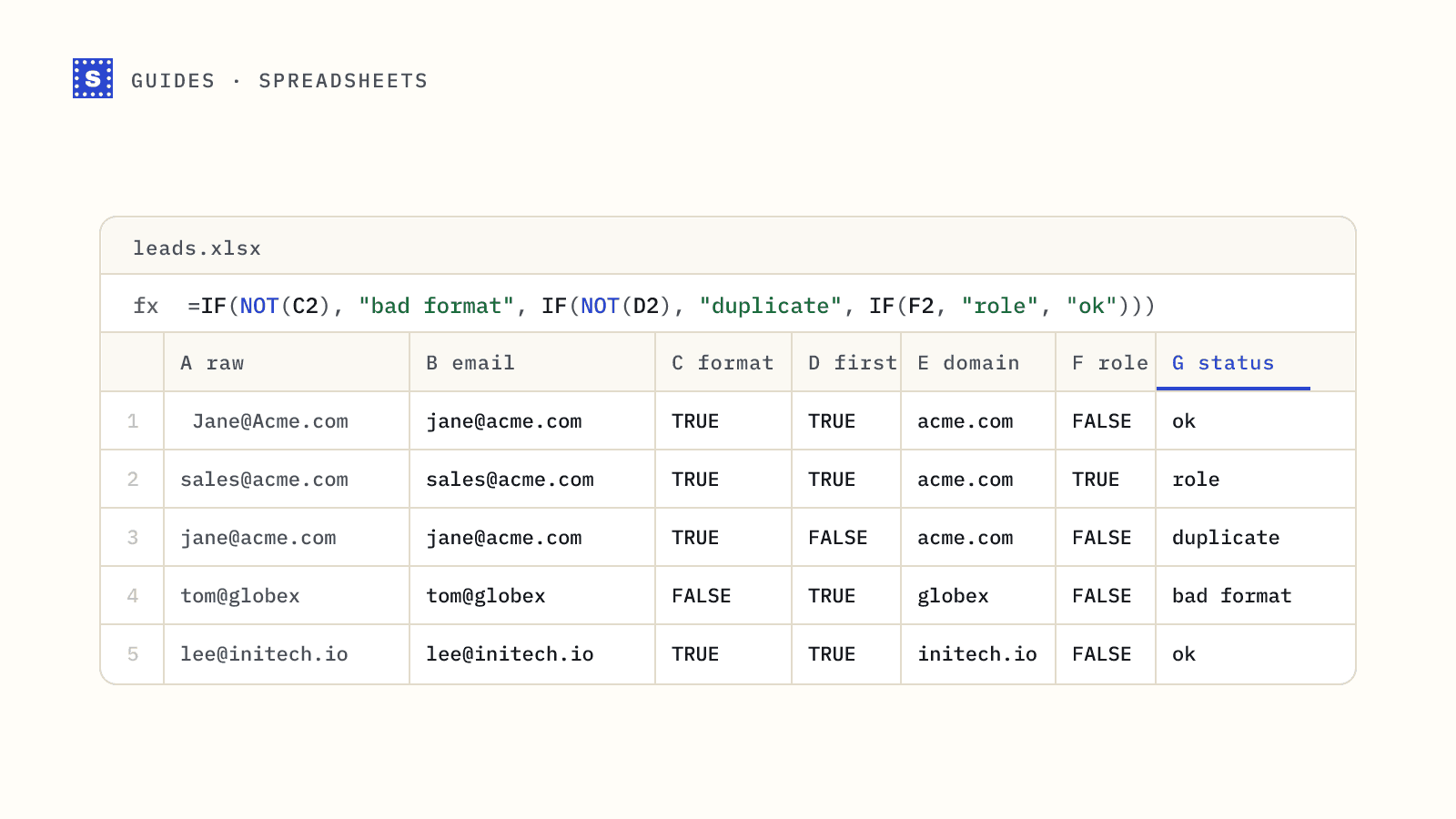
=IF(NOT(C2), "bad format", IF(NOT(D2), "duplicate", IF(F2, "role", "ok")))
Here C2 is the format check, D2 is the first-occurrence check and F2 is the role flag. Sort or filter on this column and you can see at a glance how much of the file is worth sending onward.
What a spreadsheet cannot do
Everything above is validation: it checks that an address is well formed and gives you some signals about the domain. None of it can tell you:
- whether the domain has working mail servers,
- whether this particular mailbox exists,
- whether the domain accepts every address (catch-all),
- whether the address is from a disposable email service you have not heard of.
A list of perfectly formatted addresses can still bounce heavily if the contacts left their companies. That is the job of verification, which connects to the receiving mail server and asks about each mailbox. Our post on validation vs verification explains the difference.
From the sheet to a verified list
Once your formulas have removed the obvious junk:
- Filter to rows where the format check is TRUE and the duplicate check marks the first occurrence.
- Export that view as CSV (File, Download, CSV in Sheets; Save As, CSV in Excel).
- Upload the CSV to a bulk email verifier. SimpleCold keeps every column you had, including your flags, and adds the verification result, reason code and reason. The address column needs a header such as
emailoremail address, so rename it if your sheet calls it something likeContact. - Open the result back in your spreadsheet and filter on the
Resultcolumn.
Reading the result file
The values and headers in your own columns come back unchanged, so Company stays Company and your helper columns keep their names. If one of your headers already matches a result column, such as Domain, ours gets "(SimpleCold)" added to its name. If the same address appears twice, it is checked and charged once and only the first row comes back, which is one more reason to do the duplicate step yourself first and know the count.
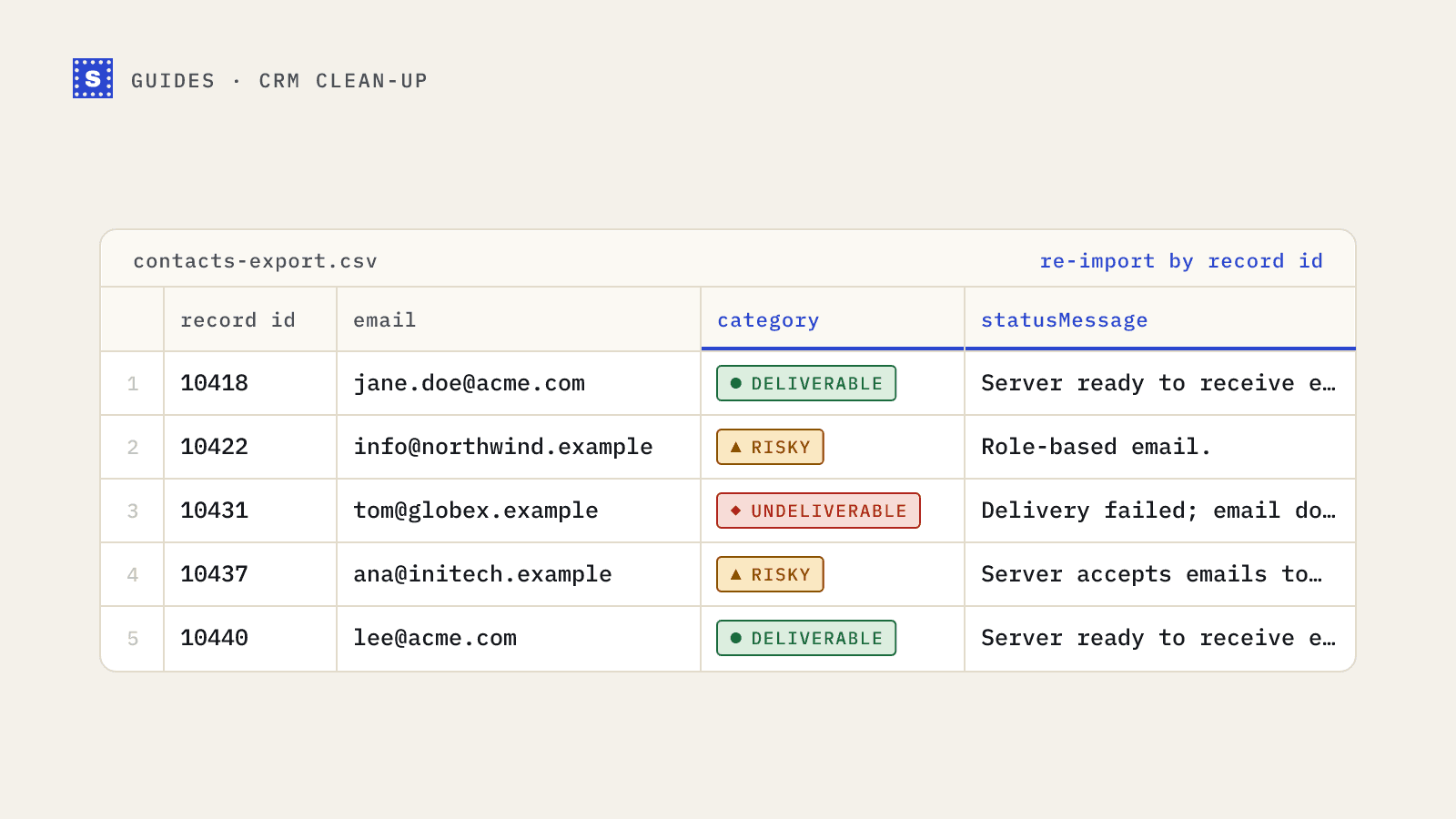
The new columns sit at the end. Result holds Deliverable, Risky or Undeliverable. Reason code holds the specific code, such as accept_all for a catch-all domain or role_address for a shared inbox, and Reason holds the same thing in plain words. Suggestion holds a corrected address when the domain looked misspelled, and Retry later says Yes when a later check may give a different answer. A quick summary in a spare cell:
=COUNTIF(L:L, "Undeliverable")
Swap L for whichever column holds Result in your file. The same COUNTIF on the Reason code column tells you how many catch-all or role-based addresses you are dealing with before you decide what to send.
For a quick test on a short list, the free list cleaning tool checks up to 100 addresses once a day without an account. For one address, the email checker gives you five free checks a day.