CRMs collect bad addresses quietly. People change jobs, companies rebrand domains, someone imports a trade-show list, and a year later a sizeable slice of your contacts would bounce if you emailed them. The fix is mechanical: export, verify, write the results back as fields, and build your sends around those fields.
This guide does that with the bulk API and a short Python script. It works with any CRM that exports and imports CSV, which is nearly all of them. The examples use HubSpot column names because they are common, but nothing depends on HubSpot. SimpleCold can import a HubSpot list for verification, but it doesn't write anything back to a CRM, so a CSV round trip is how results get into your records.
Step 1: export with a record ID
The single most important column in your export is the CRM's own record ID. Re-importing by email address works, but if an address is wrong, matching on it is fragile. Matching on ID is exact.
In HubSpot, export the contacts view you want with at least these columns:
Record IDEmail- Anything you want to keep for context, such as
First Name,Company Name,Contact owner
Other CRMs have the same idea under different names: Id in Salesforce, id in most API exports.
Save as CSV. If your CRM exports .xlsx only, open it and save as CSV with UTF-8 encoding. Accented names survive the trip that way.
Step 2: make sure SimpleCold can find the email column
The bulk endpoint looks for a header named email, e-mail, email address, emailaddress, emails or mail, ignoring case. HubSpot's Email matches. If your CRM uses something like Primary Email or Work Email, rename that header before uploading, or the upload fails with Email column not found in the file.
If the file has two email-like columns, rename the one you don't want checked, so there's no doubt which one gets verified.
All other columns, including Record ID, come back in the result file with their values and headers unchanged, so Record ID is still Record ID. If the same address appears on two rows, it is checked and charged once, and only the first row is kept in the result file. Two CRM records that share an address will therefore come back as one row.
Step 3: upload, wait, download
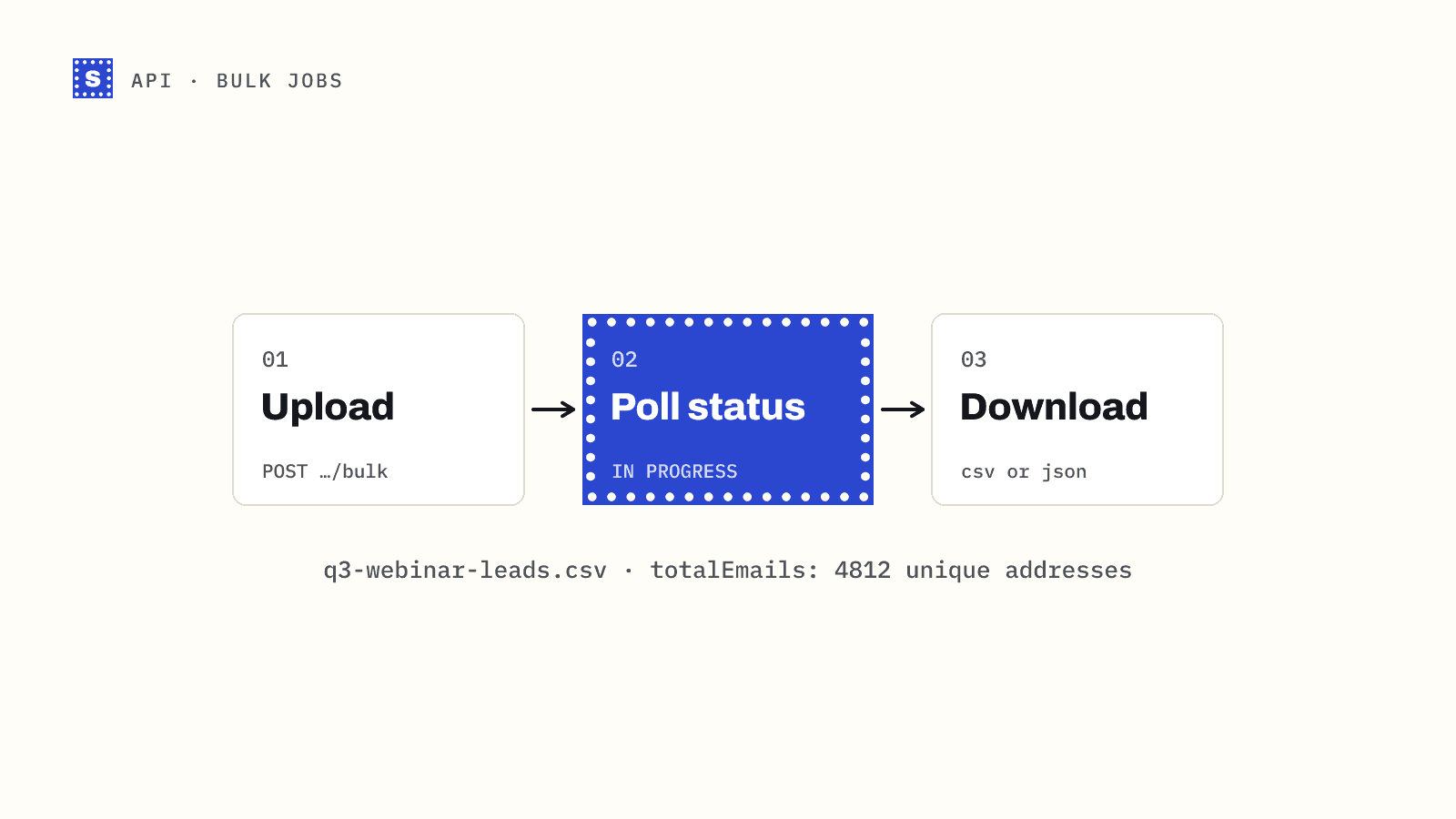
You can do this part by hand in the dashboard with the bulk email verifier. To automate it, here is the whole round trip in Python:
# clean_crm_export.py
import csv
import io
import os
import sys
import time

import requests

API = "https://simplecold.com/api/v1"
s = requests.Session()
s.headers["Authorization"] = f"Bearer {os.environ['SIMPLECOLD_API_KEY']}"


def upload(path):
    with open(path, "rb") as f:
        r = s.post(f"{API}/api-validation/bulk",
                   files={"file": (os.path.basename(path), f, "text/csv")}, timeout=300)
    body = r.json()
    if not r.ok:
        sys.exit(f"upload failed: {body.get('message') or body.get('error')}")
    return body["payload"]["id"]


def wait(job_id):
    while True:
        r = s.get(f"{API}/api-validation/bulk/{job_id}/status", timeout=30)
        if r.status_code == 429:
            # Status polling has its own budget (120 a minute per key); Retry-After says how long.
            time.sleep(int(r.headers.get("Retry-After", 60)))
            continue
        r.raise_for_status()
        p = r.json()["payload"]
        print(f"{p['status']}: {p['progressPercent']}%", file=sys.stderr)
        if p["status"] in ("COMPLETED", "CANCELED"):
            return
        if p["status"] == "FAILED":
            sys.exit("job failed; retry it from the dashboard")
        time.sleep(max(10, min(p.get("etaSeconds") or 30, 120)))


def download(job_id):
    r = s.get(f"{API}/api-validation/bulk/{job_id}/download-result",
              params={"output": "csv", "verifiedOnly": "false"}, timeout=300)
    r.raise_for_status()
    return r.content.decode("utf-8-sig")


if __name__ == "__main__":
    src = sys.argv[1]
    job = upload(src)
    print("job", job, file=sys.stderr)
    wait(job)
    rows = list(csv.DictReader(io.StringIO(download(job))))

    out = src.rsplit(".", 1)[0] + "-import.csv"
    with open(out, "w", newline="", encoding="utf-8") as f:
        w = csv.writer(f)
        w.writerow(["Record ID", "Email", "Email verification category",
                    "Email verification reason", "Email verification status",
                    "Email verification suggestion"])
        for row in rows:
            w.writerow([row.get("Record ID", ""), row.get("Email", ""),
                        row["Result"], row["Reason"], row["Reason code"],
                        row.get("Suggestion") or ""])
    print("wrote", out, file=sys.stderr)
Run it with python clean_crm_export.py hubspot-contacts.csv.
Two details in that script:
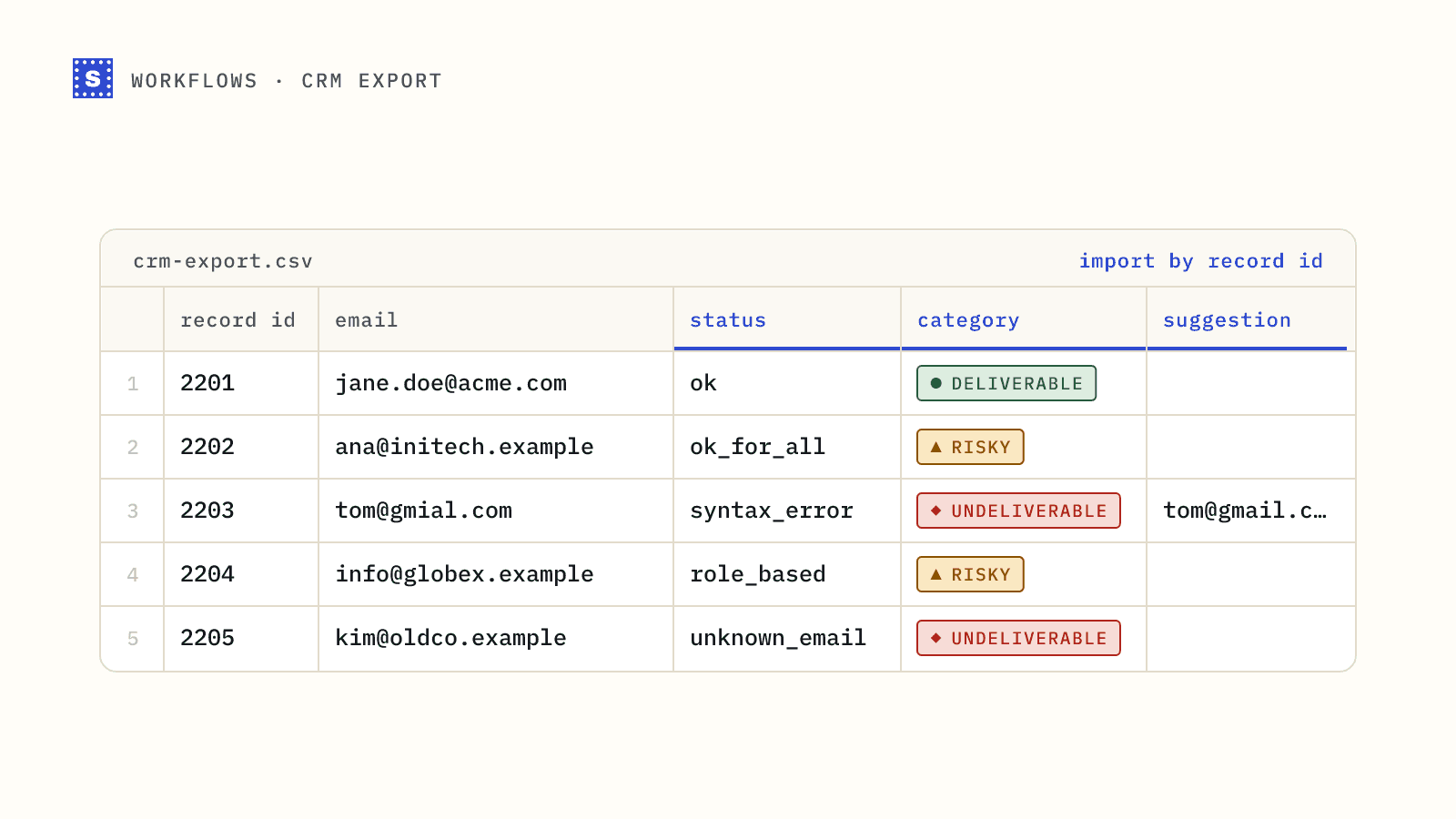
Headers come back as you sent them. The result file keeps Record ID and Email exactly as HubSpot wrote them, and adds readable columns such as Result, Reason, Reason code and Suggestion after them. That's why the script reads row.get("Record ID") and row["Result"] directly.
The import file is narrow on purpose. It carries only the ID, the address and four result fields. Re-importing every column risks overwriting edits someone made in the CRM while the job ran.
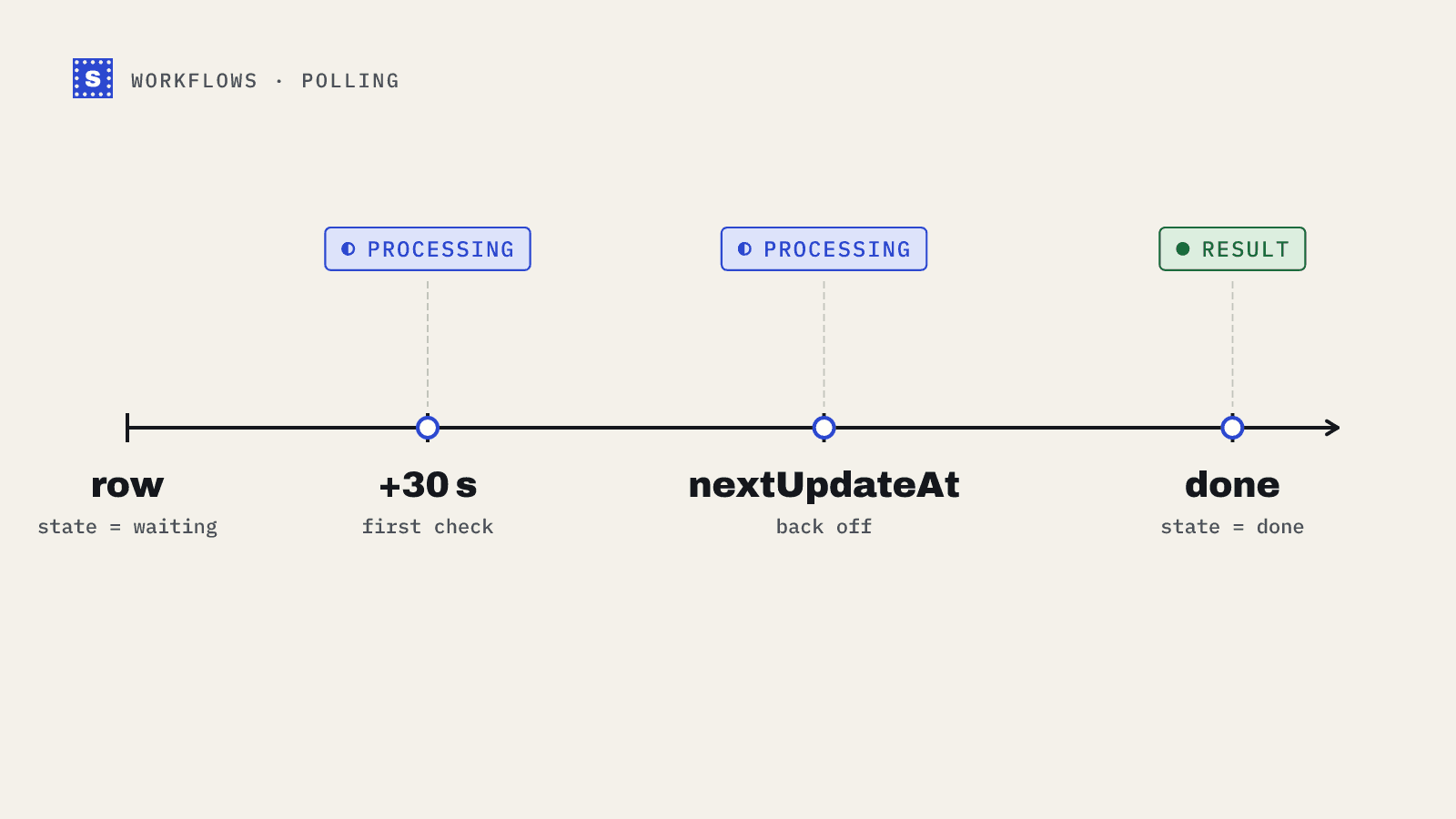
The bulk job guide explains each endpoint in more depth, including smarter polling with nextUpdateAt. If the script runs on a server that can receive requests, a bulk.finished webhook can replace the polling loop.
Step 4: create the fields in your CRM
Before importing, create custom contact properties to hold the results. In HubSpot that is Settings, Properties, Create property. A sensible set:
| Property | Type | Values |
|---|---|---|
| Email verification category | Dropdown | Deliverable, Risky, Undeliverable |
| Email verification reason | Single-line text | The Reason column, e.g. "The domain accepts mail for any address, so this mailbox can't be confirmed." |
| Email verification status | Single-line text | The Reason code column, e.g. accept_all |
| Email verification suggestion | Single-line text | A corrected address when the domain looked misspelled |
| Email verified on | Date | Set during import, or by a workflow |
A dropdown for category makes list filters and workflow branches much easier than free text.
Step 5: import by record ID
In HubSpot's importer, choose to update existing contacts and map Record ID to the record ID so rows match exactly. Map the four result columns to the properties you just created. Don't map Email back onto the email property. You exported it, it hasn't changed, and writing it back gains nothing.
Run a small import first, ten rows or so, and spot-check a few contacts before importing the rest.
Step 6: act on the results
Now build segments on the category property:
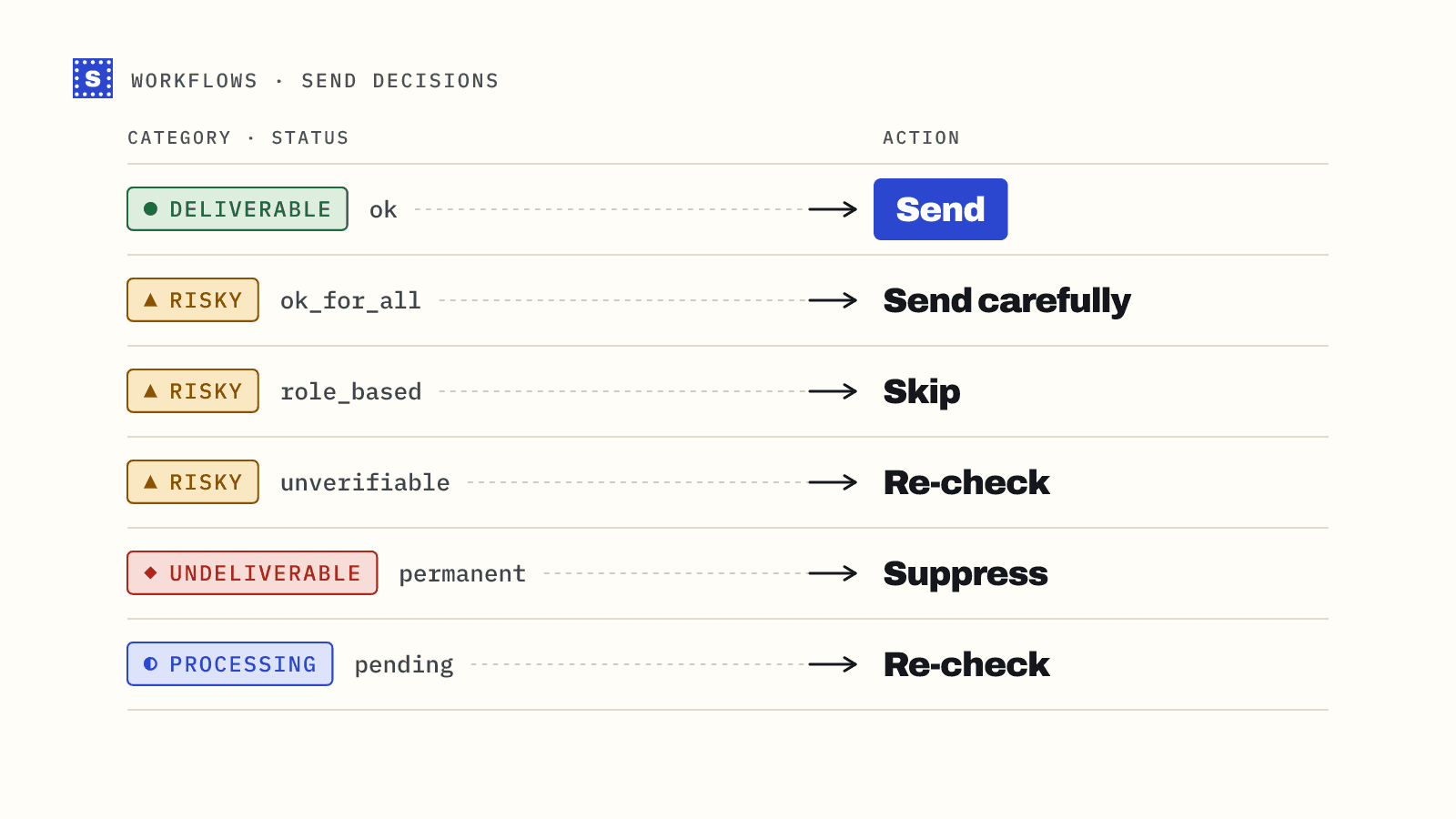
- Undeliverable: suppress from all marketing and sales sends. Keep the record for history if you need it, but don't email it. In HubSpot you can set these contacts as non-marketing, which also affects your contact billing tier.
- Risky: look at the reason code.
accept_all(catch-all domain) androle_addressaddresses are often fine for small, careful sends.disposableaddresses rarely belong in a B2B CRM. - Risky and
no_response: the mail server wouldn't confirm the address. Re-check in a few weeks rather than deleting. - Has a suggestion: a person should review these. A suggestion like
[email protected]for[email protected]is usually right, but confirm before changing a customer's address.
The category mapping guide has a full table of statuses and recommended actions.
How often to repeat this
Contacts go stale gradually. A quarterly run on the whole database, plus verification of new contacts as they're created, keeps things under control. For new contacts, run the Python batch script nightly against yesterday's additions, or verify at capture with the single endpoint.
Before a big campaign to an old segment, run that segment through again even if it was verified a few months ago. That's the send where a bounce spike would hurt.
For a no-code take on the HubSpot side, see the HubSpot integration page. The API reference is in the API docs.