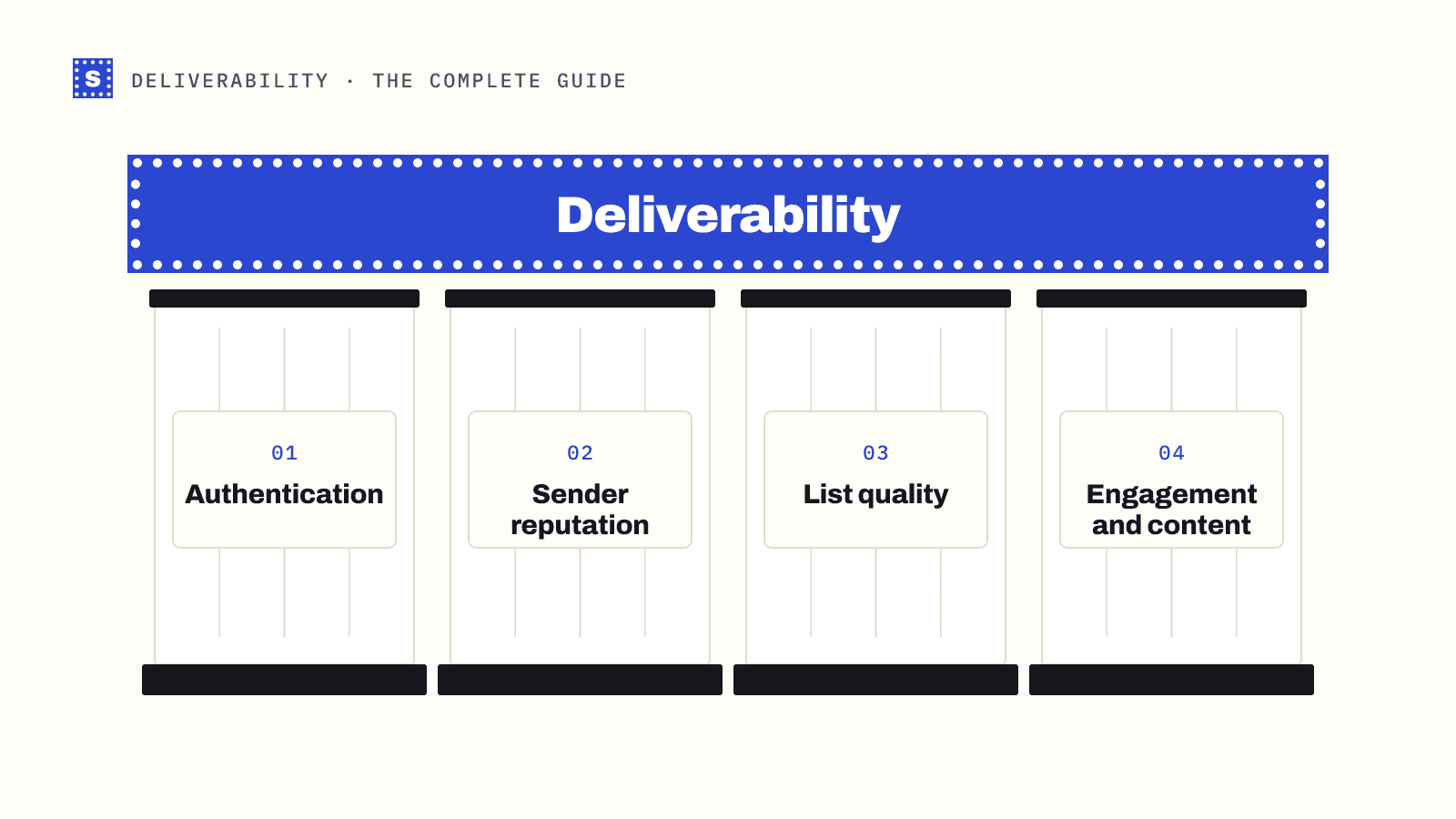
SPF, DKIM and DMARC are three DNS records that let a receiving mail server check whether an email claiming to come from your domain really did. Since February 2024, Gmail and Yahoo have required all three from bulk senders, and Microsoft added similar rules for Outlook.com in 2025. If you send cold email or newsletters, they're no longer optional.
Most explanations get lost in protocol detail. This one sticks to what each record does, what goes wrong, and what to set up.
The problem they solve
Email was designed without any way to prove who sent a message. Anyone can put [email protected] in the From line. Spammers and phishers relied on that for decades.
The three records fix it in layers:
| Record | Question it answers | Where it lives |
|---|---|---|
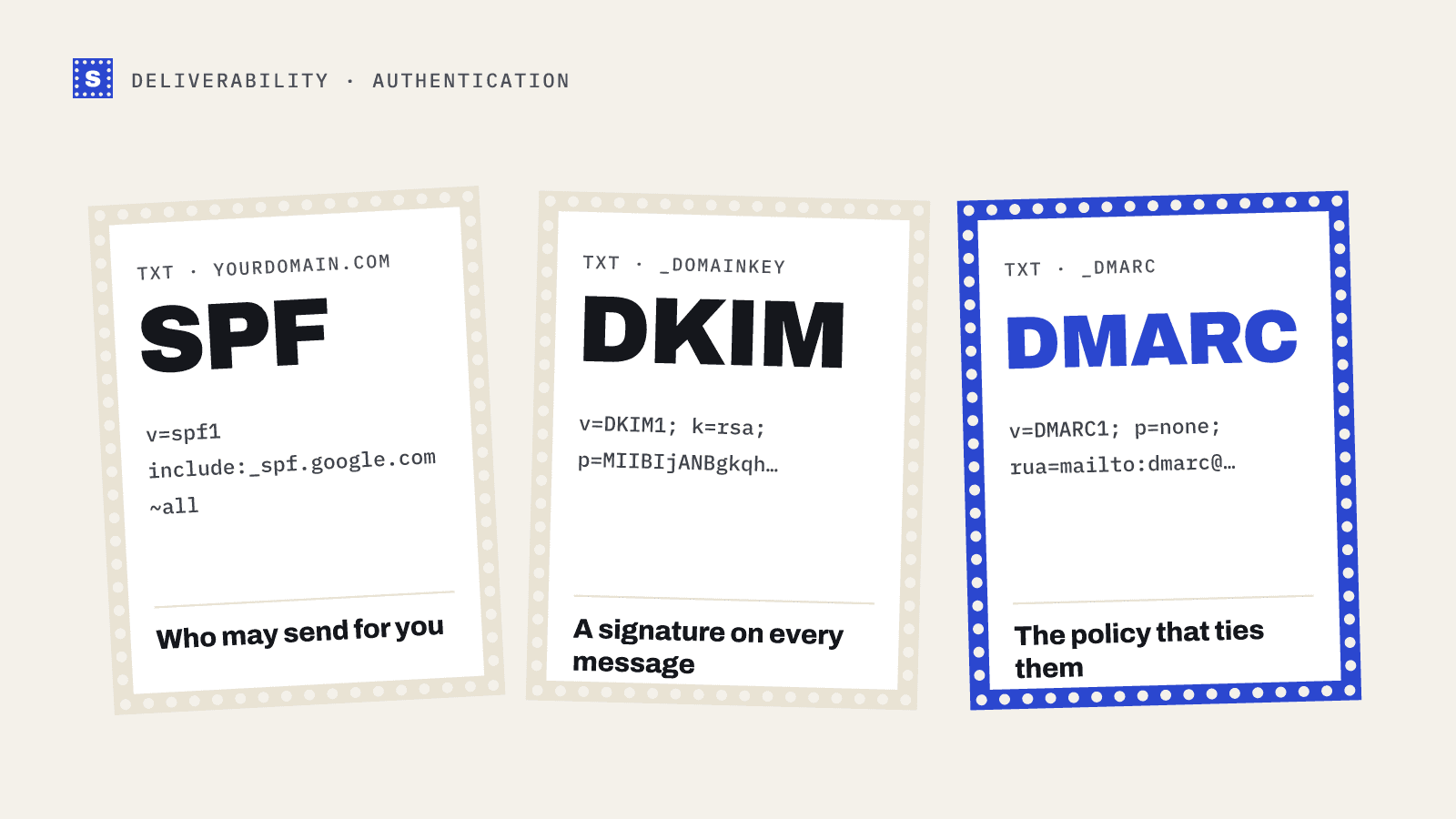
| SPF | Is this server allowed to send mail for this domain? | TXT record on your domain |
| DKIM | Was this message signed by the domain, and is it unchanged? | TXT record at selector._domainkey.yourdomain |
| DMARC | What should receivers do when SPF and DKIM don't line up with the From address, and where should they send reports? | TXT record at _dmarc.yourdomain |
SPF: the list of allowed senders
SPF (Sender Policy Framework, RFC 7208) is a TXT record that lists the servers and services allowed to send email for your domain. When a message arrives, the receiving server looks at the domain in the envelope sender (the hidden "return path", which isn't always the visible From address) and checks whether the sending IP is on that domain's list.
A typical record for a domain that sends through Google Workspace and one marketing tool:
v=spf1 include:_spf.google.com include:spf.your-esp.example ~all
include: pulls in the provider's own list. The ending matters: ~all means "treat everything else as suspicious" (softfail), -all means "reject everything else" (fail).
Common SPF problems:
- Two SPF records. A domain must have exactly one. If you add a second TXT record starting with
v=spf1, SPF fails for everyone. Merge them into one. - Too many lookups. SPF allows at most 10 DNS lookups while evaluating the record. Each
include:counts, and nested includes count too. Stack enough tools and you'll hit a permanent error. - Forgotten senders. Your CRM, help desk or billing system sends from your domain but isn't in the record.
You can check yours with the free SPF checker.
DKIM: a signature on every message
DKIM (DomainKeys Identified Mail, RFC 6376) adds a cryptographic signature to each outgoing message. Your mail provider signs certain headers and the body with a private key. You publish the matching public key in DNS. The receiver fetches the key, checks the signature, and knows two things: the message was signed by someone holding your key, and nobody changed it in transit.
The public key lives under a selector, so one domain can have several keys for different services:
google._domainkey.yourdomain.com TXT "v=DKIM1; k=rsa; p=MIIBIjANBgkqh..."
You don't write this record yourself. Google Workspace, Microsoft 365 and every serious sending tool generate it for you in their admin panel; you copy it into DNS and switch signing on. Use 2048-bit keys where your DNS host supports them.
Check a published key with the DKIM checker. You'll need the selector, which you can find in the DKIM-Signature header of an email you've sent (the s= value).
DMARC: the policy that ties them together
SPF and DKIM each check a domain, but not necessarily the one your reader sees in the From line. DMARC (RFC 7489) closes that gap with alignment. A message passes DMARC when SPF or DKIM passes and the domain they validated matches the From domain.
The DMARC record also tells receivers what to do with mail that fails, and where to send reports:
_dmarc.yourdomain.com TXT "v=DMARC1; p=none; rua=mailto:[email protected]"
The p= tag sets the policy:
| Policy | Effect |
|---|---|
p=none | Monitor only. Failing mail is treated as usual, and you get reports. |
p=quarantine | Failing mail should go to spam. |
p=reject | Failing mail should be refused. |
Google and Yahoo require at least p=none from bulk senders. Start there, read the aggregate reports for a few weeks to find every service sending as you, fix their SPF and DKIM, then move to quarantine and eventually reject. Jumping straight to reject is a quick way to lose your own invoices and password resets.
The DMARC checker will read your current policy back to you.
How they work together
Picture a message from [email protected] arriving at Gmail:
- Gmail checks SPF for the return-path domain against the sending IP.
- Gmail verifies the DKIM signature using the key at the selector in DNS.
- Gmail looks up your DMARC record and checks whether either passing result aligns with
yourdomain.com. - If DMARC passes, the message moves on to reputation and content filtering. If it fails, Gmail applies your policy.
Authentication doesn't get you into the inbox on its own. It gets you considered. Reputation, complaint rate, bounces and content decide the rest.
Setup checklist for cold email domains
Cold email usually runs on secondary domains (for example getyourcompany.com alongside yourcompany.com) so a reputation problem can't touch your main domain. Each sending domain needs its own records.
- Pick the mailbox provider (Google Workspace or Microsoft 365 are the usual choices) and add the domain.
- SPF: one record, including your mailbox provider and your sequencer if it sends through its own servers. Most sequencers send through your mailbox, so the provider's include is often enough.
- DKIM: generate the key in the admin console, publish it, and turn signing on. Send a test and confirm
dkim=passin the headers. - DMARC: publish
p=nonewith a reporting address. Point reports at a mailbox or a DMARC reporting service you will actually read. - Custom tracking domain in your sequencer if you use open or click tracking, so links don't share a reputation with every other customer of that tool.
- Check the main domain too. It needs DMARC as well, or someone can spoof it while you send from the secondary.
- Test before warm-up. Send to a Gmail and an Outlook address you own and read the authentication results in the headers.
Then warm the domain up gradually and send only to verified addresses. Our cold email deliverability checklist and domain warm-up guide pick up from here.
Where list quality comes in
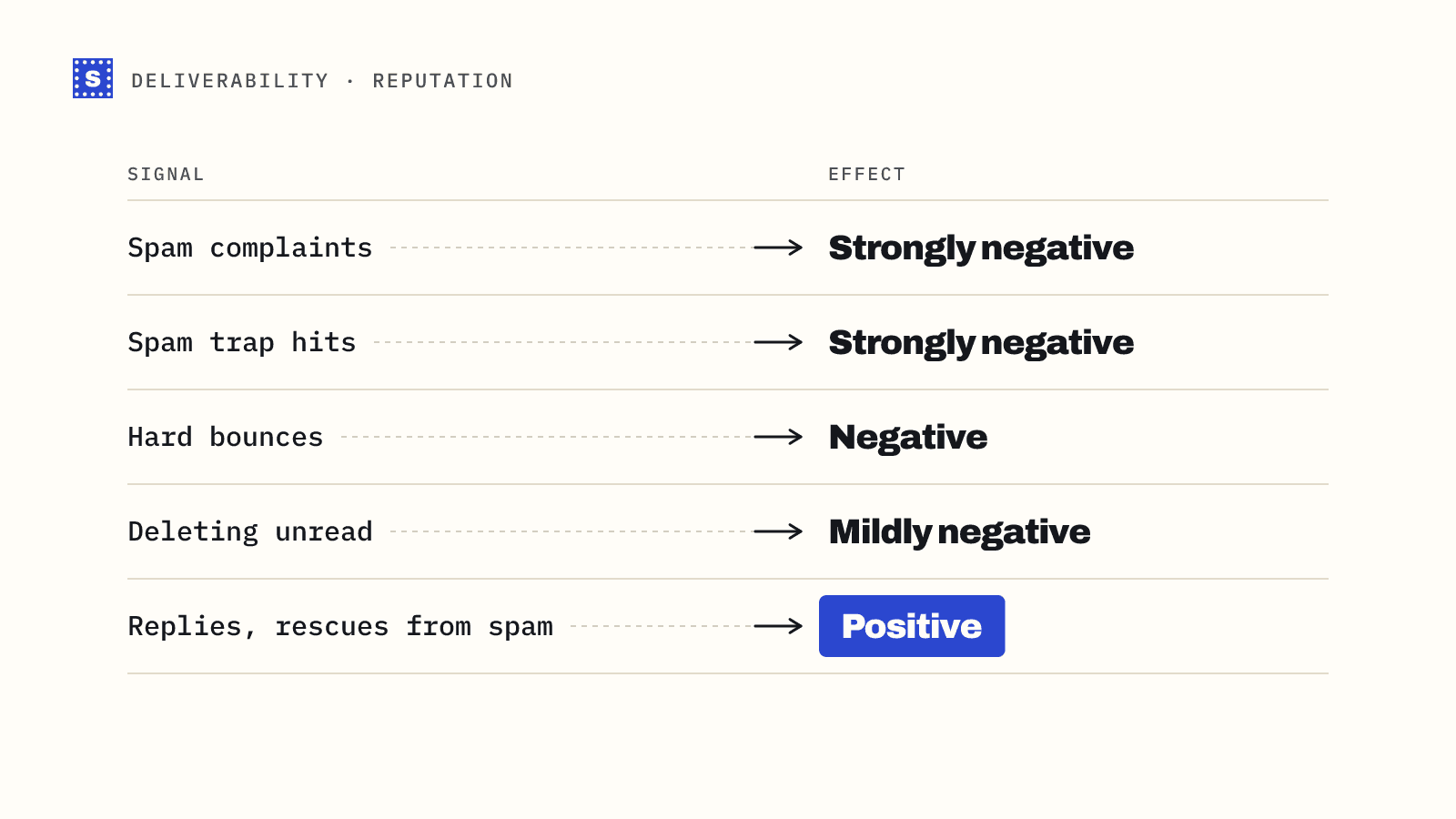
Perfect authentication doesn't help if a fifth of your list bounces. Mailbox providers read high bounce rates as a sign you don't know who you're emailing. Verify every list before it goes into a sequence. SimpleCold's bulk email verifier checks each address and tells you why it's risky or undeliverable, so you can remove the bad ones before your new domain's reputation pays for them.
For quick definitions, see the glossary entries for SPF, DKIM and DMARC.