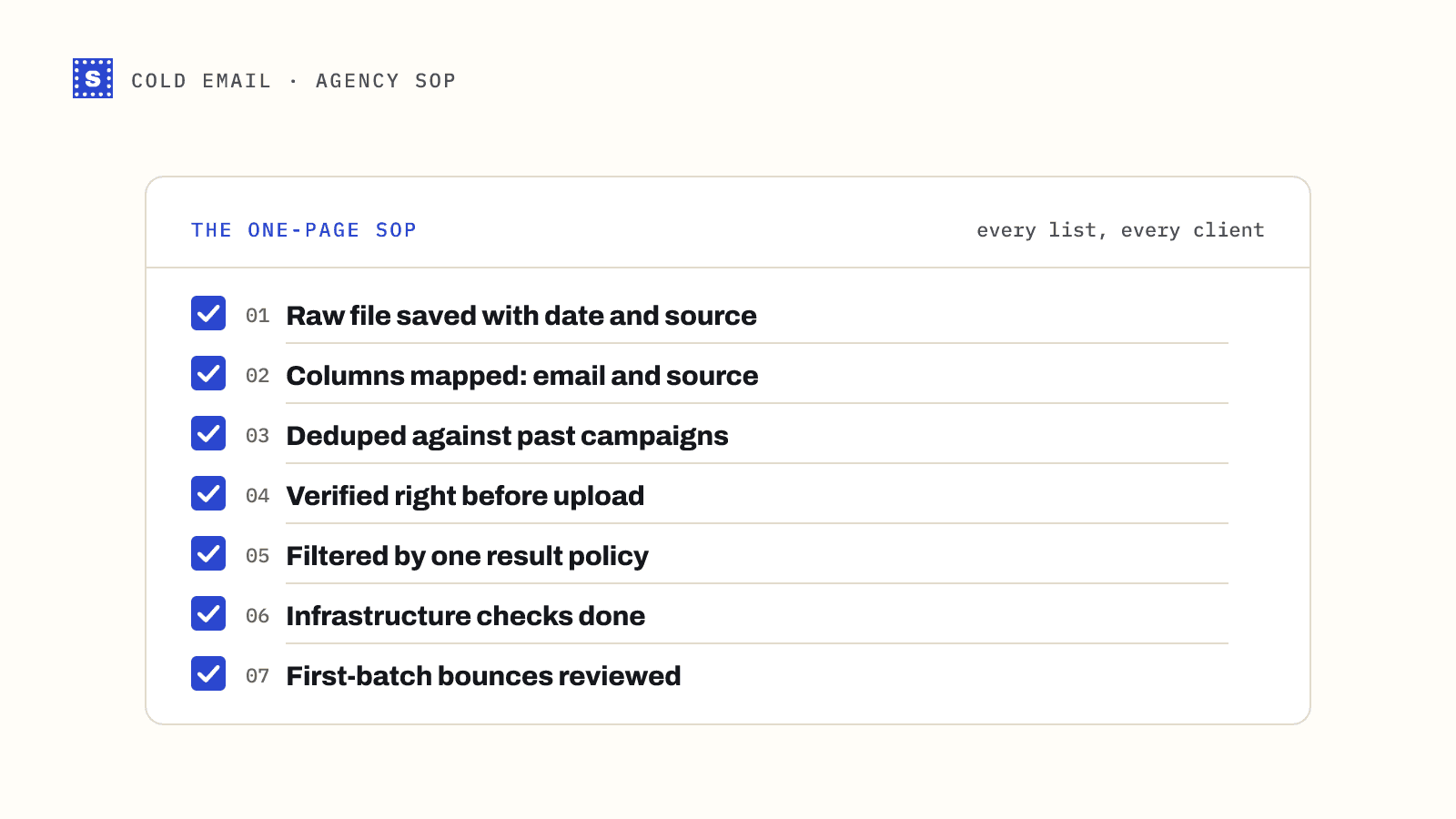
Most cold email problems that look like deliverability problems start as list problems. A sequence goes out to 2,000 leads, 80 of them don't exist anymore, the mailbox provider sees a sender hitting dead addresses, and the next week's opens fall off a cliff. Verifying the list before it reaches your sequencer is the cheapest fix you have, and it takes less time than writing the first email.
This guide walks through the workflow we'd use for any outbound list, whether it came from Apollo, a scraped directory, an enrichment tool or a spreadsheet a colleague built two years ago.
Why verify emails before cold outreach at all
Cold email has less room for error than newsletters. You're sending from domains that are usually young, to people who never asked to hear from you, often through mailboxes that only send a few dozen emails a day. A handful of hard bounces in a small daily volume is a large share of your traffic.
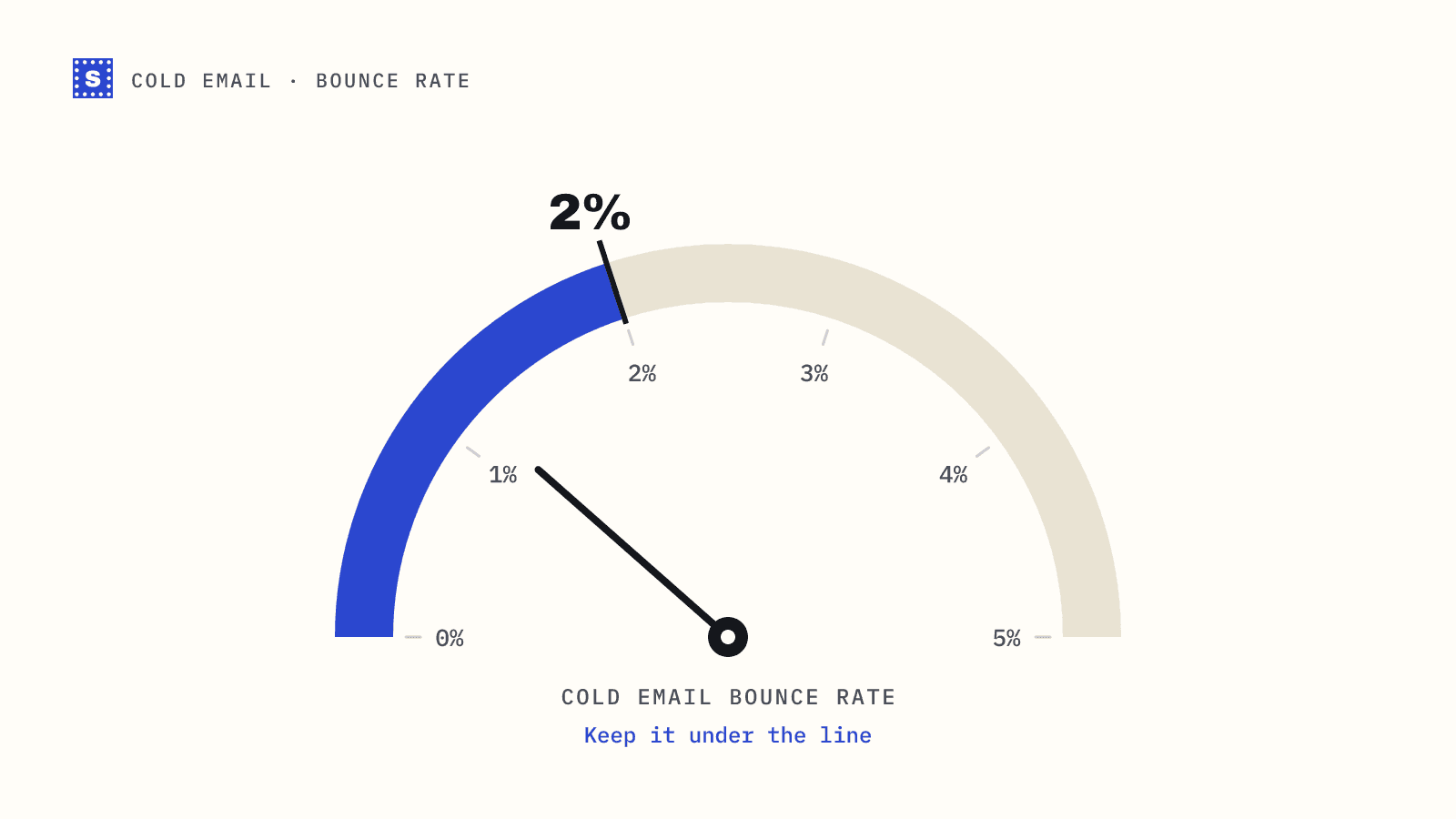
Mailbox providers watch bounce patterns because hitting nonexistent addresses is one of the clearest signs that a sender bought, scraped or guessed its list. The widely used rule of thumb in outbound is to keep hard bounces under 2% of sends. No provider publishes that number as a hard limit, but most teams that stay below it don't have bounce-driven reputation problems, and most teams that blow past it do.
Your sequencer will also react. Most cold email platforms watch bounce rates per campaign or per mailbox and will warn you or pause sending when they climb. Getting paused mid-campaign is annoying. Getting a sending domain flagged is worse.
Step 1: Export the list with its context
Export everything, not only the email column. Keep first name, company, title, LinkedIn URL, lead source and any custom fields your sequence uses. You want to be able to re-import a cleaned file without rebuilding personalisation.
A few habits that save time later:
- Export to CSV, UTF-8. Excel files with merged cells and formulas cause more trouble than they're worth.
- Keep one email address per row. If your source puts work and personal emails in separate columns, decide which one you're mailing before you verify.
- Add a column with the source and export date. When you see a list with a high invalid rate six months from now, you'll want to know where it came from.
Step 2: Remove the obvious junk first
Before paying to verify anything, do a quick pass in a spreadsheet:
- Remove duplicates. Most sequencers dedupe on import, but verifying the same address three times wastes credits.
- Trim whitespace and lowercase the domain part.
- Delete rows where the email cell is empty or clearly broken (no
@, a URL instead of an address, two addresses in one cell).
If you want a hand with format checks, the email syntax checker shows what's wrong with a specific address.
Step 3: Run the list through a verifier
Upload the CSV to a bulk email verifier. A proper verifier runs several checks on every address:
| Check | What it catches |
|---|---|
| Syntax | Malformed addresses, illegal characters |
| Domain and MX | Domains that don't exist or can't receive mail |
| Disposable | Throwaway inboxes from temporary mail services |
| Role-based | Shared addresses such as info@ or sales@ |
| Catch-all probe | Domains that accept mail for any address |
| Mailbox check | Whether the server accepts the specific mailbox |
The result for each row should be a category plus a reason. "Undeliverable: mailbox does not exist" tells you something different from "Undeliverable: domain has no mail server", and both are more useful than a score of 34.
Step 4: Sort the results into send decisions
This is the step most people skip. They delete the undeliverables and send everything else, which defeats part of the point.
| Result | What it means | Cold email decision |
|---|---|---|
| Deliverable | The server confirmed the mailbox | Send |
| Risky, catch-all | The domain accepts any address, so the mailbox can't be confirmed | Separate segment, small batches |
| Risky, role-based | A shared inbox like info@ | Usually skip for 1:1 outreach |
| Risky, disposable | A temporary inbox | Remove |
| Risky, no response | The server wouldn't answer clearly | Hold, re-verify later |
| Undeliverable | Mailbox or domain doesn't exist | Remove and suppress |
Catch-all addresses deserve their own campaign. Many B2B domains are configured to accept everything, so a large share of your list may land here. Some of those addresses are real and some aren't, and nobody can tell from the outside. Send to them more slowly, from your healthiest mailboxes, and stop if bounces rise. We cover the trade-offs in should you send to catch-all emails.
Step 5: Import clean segments into your sequencer
Import deliverables as your main campaign. Import catch-alls as a second campaign or tag them so you can throttle them. Keep the result and reason columns on the contact if your sequencer lets you map custom fields. It makes later debugging much easier.
We have short walkthroughs for the common tools:
For each, the pattern is the same: export, verify, segment, re-import. None of it needs an integration to work.
Step 6: Suppress what you removed
Add undeliverable addresses to a suppression list in your sequencer or CRM. Otherwise the same dead addresses come back the next time someone exports a similar list from the same source. Most sequencers have a blocklist at workspace level. Use it.
How fresh does the verification need to be?
B2B data goes stale because people change jobs, companies get acquired and domains lapse. A list verified three months ago is not a list verified today. A practical rule for outbound:
- Verify every list right before its first send.
- Re-verify anything that's been sitting unused for more than a month or two.
- Re-verify no-response results after a few days rather than discarding them.
Verification is cheap next to the cost of rebuilding a domain's reputation, so err on the side of checking again.
A worked example
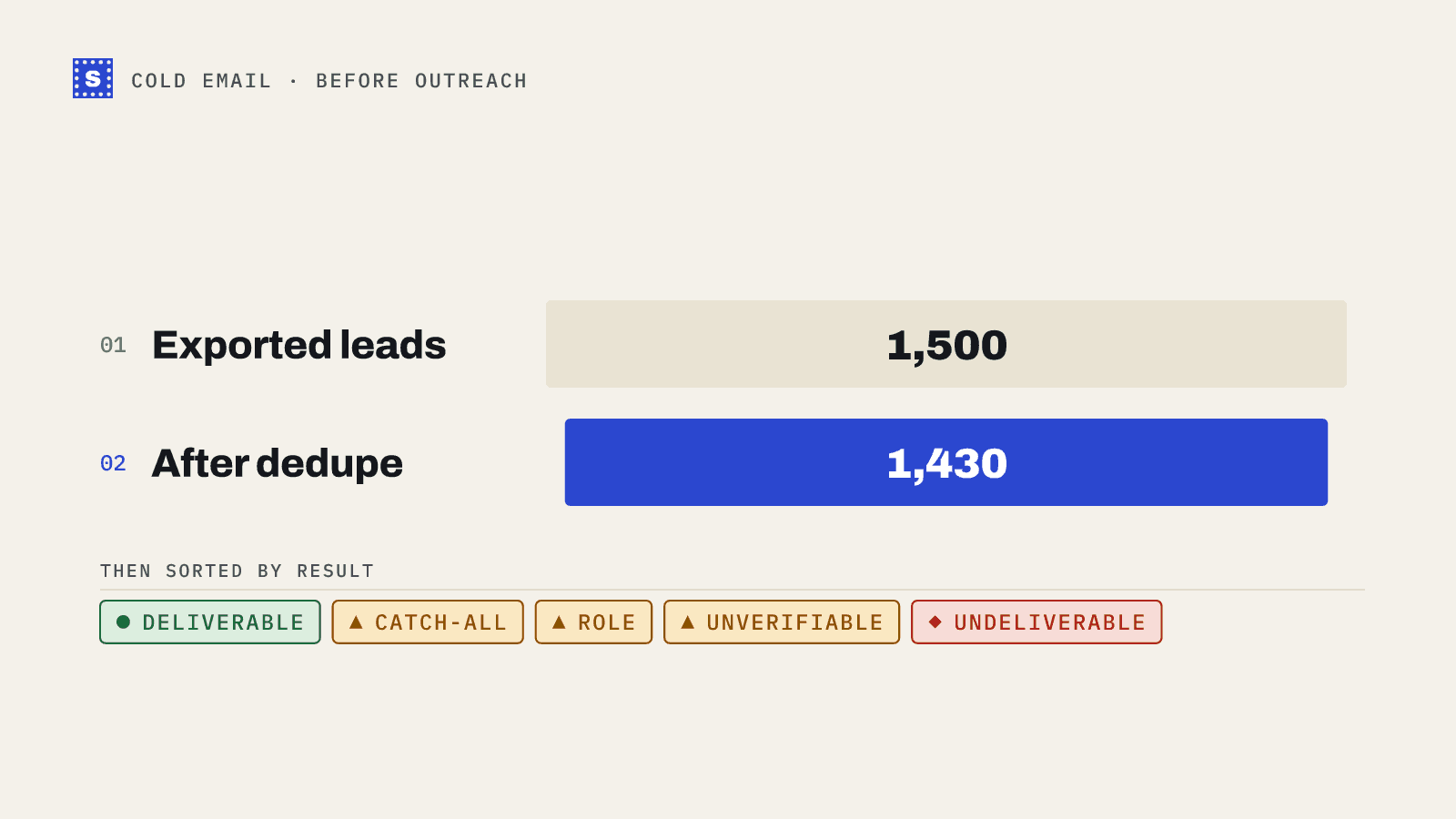
Say you export 1,500 leads for a SaaS outbound campaign. After dedupe you have 1,430. The verifier sorts them into deliverable, catch-all, role-based, no response and undeliverable. Your actual numbers will depend heavily on the source and how old it is, so treat the following as a process rather than a benchmark:
- Deliverables go into campaign A, sending at your normal daily volume.
- Catch-alls go into campaign B at a fraction of that volume, from mailboxes with the most history.
- Role-based addresses get reviewed by hand. For a five-person company, sales@ might be the founder. For an enterprise, skip it.
- No-response addresses go into a "re-verify next week" file.
- Undeliverables get added to the suppression list.
The whole thing takes about 20 minutes of hands-on time, most of it in step 4.
Where SimpleCold fits
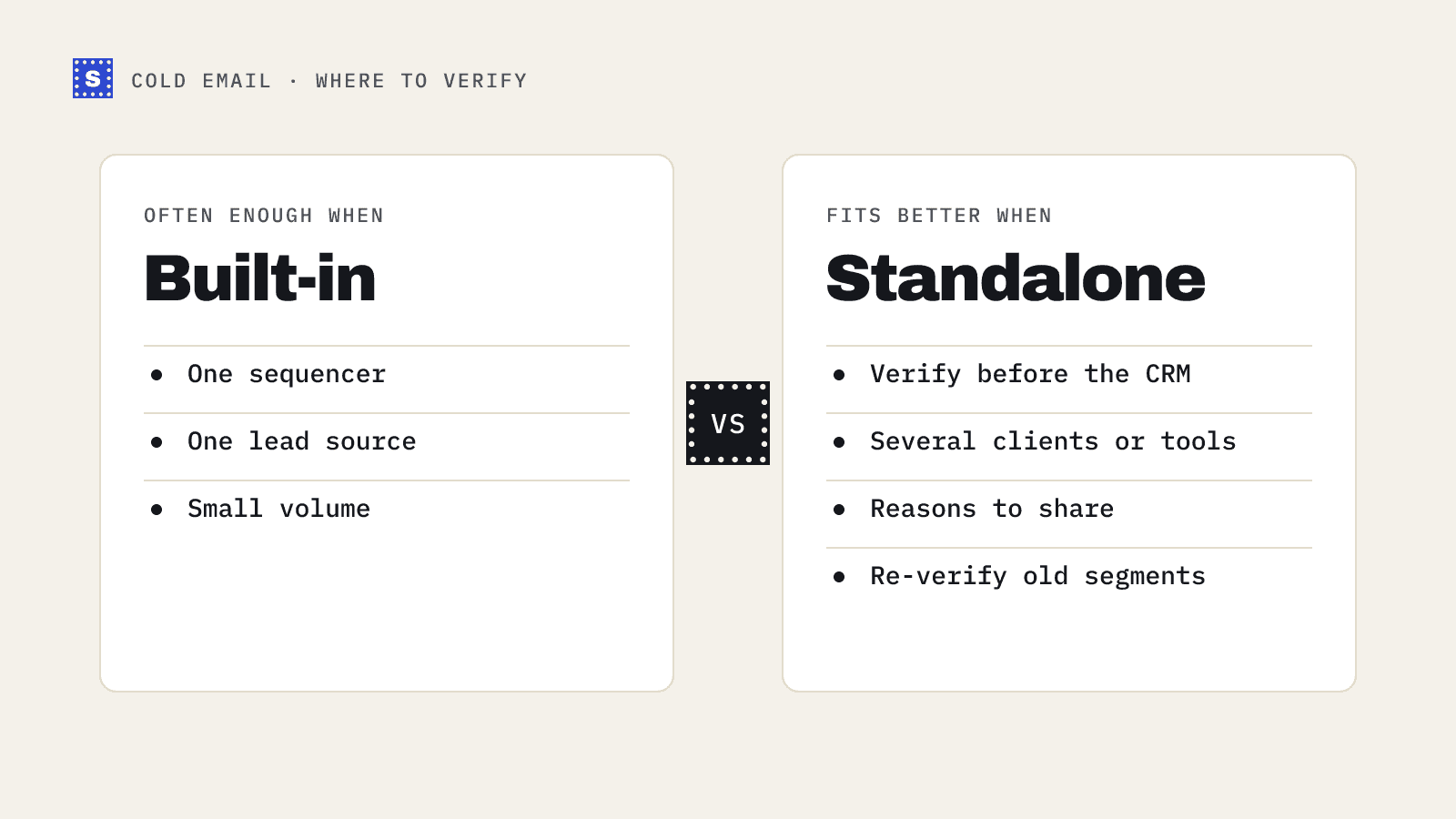
SimpleCold returns one of three categories for every address, Deliverable, Risky or Undeliverable, with a status and a plain reason next to it, and the CSV you download keeps every column you uploaded. Catch-all, role-based, disposable and no-response addresses are separate statuses inside Risky, so the table above maps straight onto the status column. That makes step 4 a filter instead of a research project. If you're running outbound for clients or several domains, the cold email solution page covers how teams set it up. You can also check a single lead with the free email checker before you commit to a full list.